
Guoxd V1 User Manual
What’s in the box
Guoxd V1 with a rechargeable battery and LCD screen.
The screen has a protective film. Marks on arrival may be on the film rather than the screen. If the film is difficult to lift, use a small piece of adhesive tape to lift a corner gently.
Basic controls
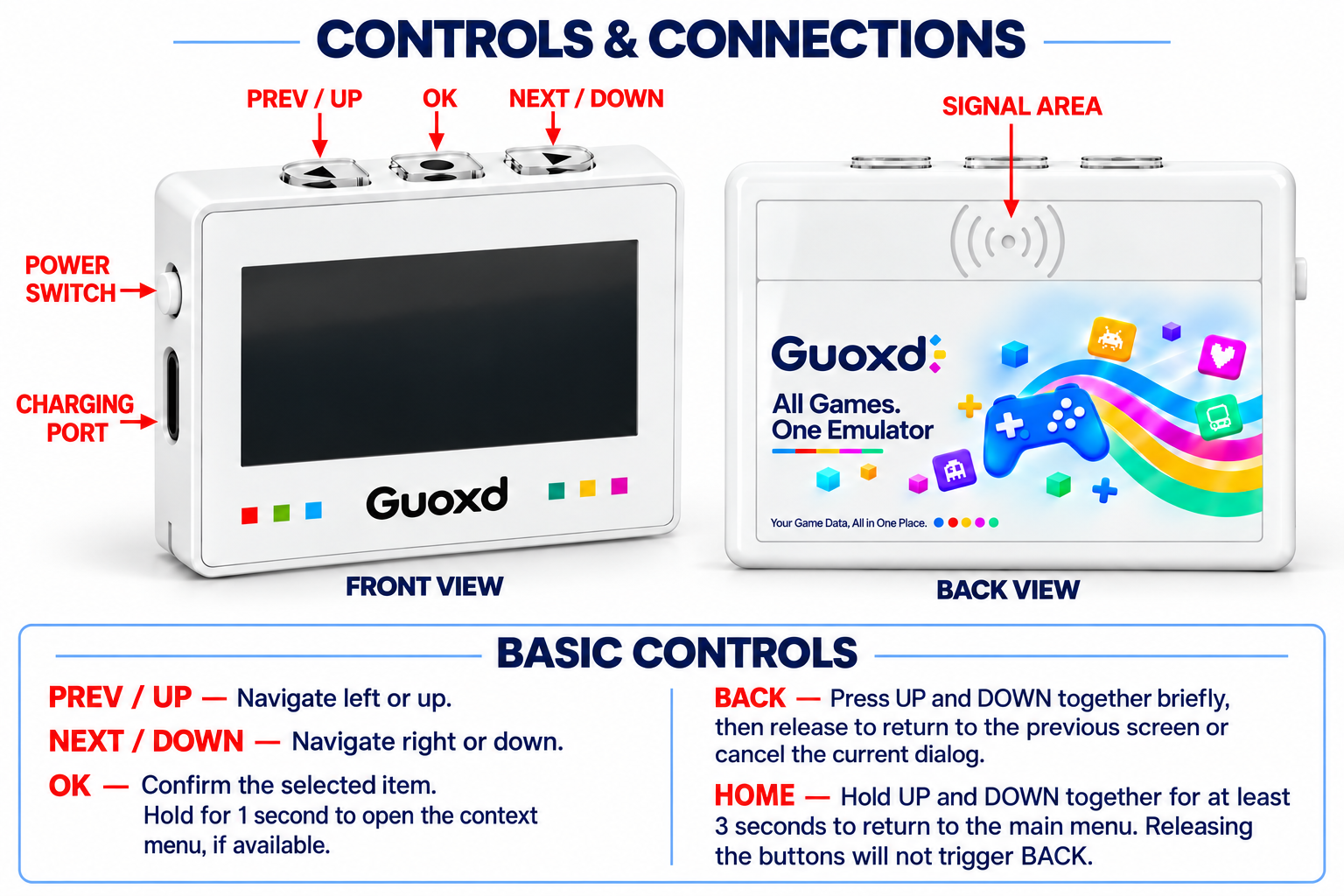
PREV / UP — Navigate left or up.
NEXT / DOWN — Navigate right or down.
OK — Confirm the selected item. Hold for approximately one second to open a context menu where available.
BACK — Press UP and DOWN together briefly, then release to return to the previous screen or cancel the current dialog.
HOME — Hold UP and DOWN together for at least three seconds to return to the main menu. Releasing the buttons will not trigger BACK.
Release both buttons fully before the next operation. If HOME is unavailable during NFC activity or a transfer, finish the operation, move the device away from the reader, release both buttons, and try again.
Power controls
POWER ON — Charge the battery if needed, then move the power switch to ON.
WAKE — With the power switch ON, briefly press and release OK to wake the device.
LOW OR EMPTY BATTERY — Connect a compatible USB-C power source and allow the battery to charge before trying again.
POWER OFF — Disconnect external cables and move the power switch to OFF.
NORMAL RESTART — Select Settings → System Reboot.
FORCE RESTART — If the device remains unresponsive after checking the switch and battery, disconnect USB-C and other external cables. Move the switch to OFF, wait a few seconds, then switch it back to ON.
Holding UP and DOWN for three seconds returns to the main menu; it does not restart the device. A forced restart may lose unsaved changes. Do not interrupt firmware updates or data writes.
If the device still does not turn on, contact support@guoxd.net.
Emulating amiibo
The built-in Database catalogue is organized by game or category.
- Turn on Guoxd V1.
- Select Database.
- Select Browser....
- Choose a category, such as The Legend of Zelda.
- Select an entry, such as 8-Bit Link, to open its details and begin emulation.
Scanning with your console
Enable amiibo in your game before scanning. See Activate Amiibo Features in Games for instructions.
Select the intended tag on Guoxd V1. Place the signal area on the back of the device near the controller’s NFC touchpoint: the right control stick on a Joy-Con, or the center logo area on a Nintendo Switch Pro Controller.
Use a controller that supports amiibo / NFC. If scanning fails, try an official controller. Third-party controller compatibility is not guaranteed.
Try these troubleshooting steps in order:
- Check that the game’s amiibo feature is unlocked and enabled.
- Remove any right-stick cover or case that obstructs the scanning area.
- Adjust the position and distance of Guoxd V1 over the NFC touchpoint.
- Try another official controller or console.
- Select Settings → System Reboot and try again.
- If using a wireless controller, check its charge and connection.
Special instructions for BotW and TotK
Breath of the Wild and Tears of the Kingdom normally limit daily use of the same amiibo. Generating a new tag UID may allow another scan, subject to the game’s behavior. This is not a promise of unlimited rewards and does not override limits recorded by other games.
On the tag details screen, press OK and choose Rand. Tag to generate a new UID. The necessary amiibo keys must be available.
Auto Rand. can generate a new UID after eligible scans. In Emulator, regeneration is attempted about one second after the device leaves the reader’s field following a scan without data writes. In Database, automatic regeneration applies to entries opened through Browser... or My Favorites... in this version.
Turn Auto Rand. off for games that require a stable UID, including use cases in Splatoon and Super Smash Bros. Keep the same saved tag when a game asks for the amiibo you previously registered.
Special instructions for Kirby Air Riders
REVIEW HOLD — The supplied draft describes I2C Plus 2K tag support, a Machines menu, and a specific upload and training workflow. These are not established by Navigating the system. Guoxd V1 firmware support, file format, menu labels, and write-back behavior must be confirmed before publishing operating instructions. Do not use NTAG215 slot instructions as a substitute.
Navigating the system
Use UP / DOWN to navigate and OK to select.
Tip: in standard lists, pressing UP at the first item takes you to the last item. Pressing DOWN at the last item returns to the first.
BACK – Press UP & DOWN together briefly, then release to return to the previous screen or cancel the current input.
HOME – Hold UP & DOWN together for at least 3 seconds to return to the main menu.
Release both buttons before using another combination. If HOME does not respond during NFC activity or a file transfer, finish the operation, move the device away from the reader, then release and try again.
Emulator
Browse folders and open saved amiibo or NTAG215 tag files.
Use “..” to return to the parent folder.
Hold OK for approximately 1 second in the file browser to open the file menu:
Create New Folder... – Create a folder.
Create New Tag... – Create a blank NTAG215 tag file.
Batch Create New Tag... – Create multiple blank tag files.
Rename... – Rename the selected file or folder.
Delete... – Delete the selected file or folder.
Back to File List – Return to the browser.
Back to Main Menu – Return to the main menu.
On the tag details screen, use UP / DOWN to switch between tag files in the same folder. Press OK to open:
Rand. Tag – Generate a new UID for the selected amiibo. Requires the necessary amiibo keys.
Auto Rand. – Enable or disable automatic UID randomization. When enabled, the device attempts to generate a new UID about one second after leaving the reader’s field following a scan without data writes. The default is OFF.
Set Custom ID – Enter a custom tag UID.
Read-only – Enable or disable protection against NFC writes.
Delete Tag – Delete the current tag file.
Back to Tag Details / Back to File List / Back to Main Menu – Return to the corresponding screen.
Database
Browser... – Browse the built-in amiibo catalogue by game or category.
Search... – Search by English amiibo name. If too many results are found, use a more specific search.
My Favorites... – Access bookmarked amiibo entries.
Hold OK on a favorite or folder to open New..., Empty..., or Delete....
Favorites store catalogue references. Use Save As... to preserve the current tag data.
My... – Access saved tag slots.
Press OK to open a slot.
Hold OK and select Reset... to immediately clear that slot.
Settings...
Keys – Show whether the required amiibo keys are loaded.
Slot Num. – Choose 10, 20, 30, 40, or 50 saved slots. The default is 20.
Sort Field – Choose Default or Name sorting for the catalogue.
On an amiibo details screen, press OK to open:
Rand. Tag – Generate a new UID for the selected amiibo.
Auto Rand. – Turn automatic UID randomization ON or OFF. In this version, automatic regeneration applies to entries opened through Browser... or My Favorites....
Display QR Code – Show or hide the amiibo information QR code.
Read-only – Control NFC write protection for tags opened from My....
Favorite... – Add the amiibo to a favorites folder.
Save As... – Save the current tag data to a selected slot, replacing any existing data in that slot.
[Back to Detail] / [Back to List] – Return to the corresponding screen.
[Exit] – Return to the main menu.
AmiiLink
Exchange tag data with a compatible phone application over Bluetooth.
Press OK on the tag details screen to open:
Mode
Randomize (Manual) – Receive or replace the current tag from a compatible phone application without automatic UID randomization.
Randomize (Auto) – Enable automatic UID randomization after eligible scans.
Sequential mode – Use 26 tag slots. UP / DOWN switches slots; receiving a tag from the phone saves it into the current slot and advances to the next. Scanning with an NFC reader does not automatically advance the slot.
Read-write mode – Select the single-tag NFC read/write mode.
Compati. Mode – Select V1, V2, or AmiLoop to match the phone application.
[Tag Details] – Return to the tag screen and resume the Bluetooth connection interface.
[Main Menu] – Exit AmiiLink.
Card Emulator
Use UP / DOWN to switch card slots. Press OK to open the card menu.
Slot – Select an enabled slot.
Nick – Set the slot’s nickname.
ID – Display the current card UID.
Type – Select the emulated card type. Available options include:
MiFare Mini, 1K, 2K, and 4K.
NTAG 210, 212, 213, 215, and 216.
Mifare Ultralight, Ultralight C, and Ultralight EV1 variants.
Default Card – Designate a default slot. The device restores that slot when leaving Card Emulator, provided it remains enabled.
Data...
Load... – Import a card dump matching the selected card type.
Save... – Export the current card data to a file.
Factory... – Immediately reset the current slot’s card data to its factory template.
Advanced... – Access card identification and compatibility parameters. Available options depend on the card type.
Slots Settings...
Slot Num... – Choose 8, 20, or 50 slots. The default is 8.
Turn individual slots ON or OFF.
[Tag Details] – Return to the card screen.
[Main Menu] – Return to the main menu.
BLE File Transfer
Open this application to enable Bluetooth file transfer. The device advertises as Guoxd V1.
The screen displays the Bluetooth address and the file management website.
Use UP / DOWN to switch between the information screen and the website QR code.
Finish any active transfer before pressing OK to exit. Exiting disables this Bluetooth transfer interface.
Settings
Version – Display the firmware version and build information.
Language – Choose from 15 language options, including English, Simplified Chinese, Traditional Chinese, Spanish, Japanese, French, German, and others.
External Storage
Show storage availability, total capacity, and free space. The parent menu shows the used percentage.
Format – Erase files and data in external storage after confirmation. The system firmware remains installed.
Contrast – Adjust the LCD contrast.
Backlight – Adjust the LCD backlight brightness or turn it off.
Menu Animation – Enable or disable menu animation and scrolling of long selected menu text.
LiPO Battery – Select the battery monitoring mode. Keep the setting appropriate for the device’s hardware; this option does not control charging.
Memory Used – Show diagnostic information about working memory usage.
Fast Wakeup – Restore the previous application after sleep where supported.
Sleep Timeout – Set automatic sleep to 15, 30, or 45 seconds; 1, 2, or 3 minutes; or OFF.
App Management – Show or hide applications on the main menu.
Go Sleep – Put the device to sleep. Press OK to wake it while the power switch is ON and sufficient power is available.
Firmware Update – Enter Bluetooth DFU mode for installing a compatible firmware package.
System Reboot – Restart the device.
Reset Default Setting – Restore default settings without formatting the stored files.
About Device – Display the open-source project and license information.
Back to Main Menu – Return to the main menu.
Default values listed above may differ from settings already saved on your device.
Firmware update
Settings → Firmware Update enters Bluetooth DFU mode. Install only a package confirmed for your Guoxd V1 hardware and bootloader. See Firmware Update for the companion application and availability information. The signed Guoxd_r1 application-only candidate is limited to the confirmed LCD sample already fully flashed with Guoxd_r1. BLE DFU hardware acceptance is pending. Back up files and settings and prepare SWD recovery before a sample test. The display version remains 2.16.1-c1.
Need more help?
Read FAQ or contact support@guoxd.net.
Credits
The supplied product documentation credits solosky’s pixljs project as an inspiration for Guoxd V1 hardware and firmware. Open Settings → About Device for the device’s project and license information.